Temporary Email with Attachments: How to Receive Files Safely
Temporary inboxes are everywhere now. Whether you call it a temporary email or temp mail, the idea is simple: you get a disposable address you can use for quick sign-ups, one-time verifications, or low-trust communications—without exposing your primary inbox to spam, tracking, or ongoing marketing.
But the moment attachments enter the picture, things get more serious. A file can be harmless (a simple PDF receipt or a product brochure), or it can be a delivery vehicle for malware, credential theft, or hidden scripts. And because temporary email services are typically “lightweight,” you often don’t get the same layered protections that enterprise mail systems provide.
This guide is designed to be practical. You’ll learn:
- When attachments are safe—and when they aren’t
- Common file-based threats and what to avoid
- Safer ways to preview and download attachments
- Best practices for handling documents and images
By the end, you’ll be able to use a disposable email address confidently—while treating attachments with the caution they deserve.
What Is a Temporary Email (Temp Mail), and Why Do People Use It?
A temporary email (often called temp mail) is a disposable inbox address generated instantly—usually without sign-up. You use it for a short period, then discard it. This helps you:
- Avoid spam and newsletter overload
- Protect your real identity and primary email address
- Reduce tracking across sites (some services connect your email to advertising profiles)
- Keep one-off interactions separate (free trials, download gates, verification codes)
From an SEO and user perspective, the benefits are clear: a temporary email is fast, private, and convenient.
But convenience can create risky behavior: people may open attachments casually because “it’s not my real inbox.” That mindset is dangerous. Attachments can compromise your device, not just your email account.
Key point: A temp mail inbox can protect your primary email from spam, but it does not automatically protect your computer from malicious files.
The Real Security Trade-Off: Disposable Inbox vs. Attachment Risk
Using a temporary email gives you separation from your personal inbox—great. However, many temp mail services:
- Do not provide strong sender verification indicators
- Offer limited spam/phishing filtering
- Display attachments and email content inside a web interface (which can be safe, but also introduces its own risks)
- Encourage “fast click” behavior (open, download, done)
So the main question becomes:
Is it safe to receive attachments using temporary email or temp mail?
Sometimes yes, if the attachments are low-risk and you follow a secure workflow.
Often no, if the sender is unknown, the file type is risky, or you open it on your main device without precautions.
When Attachments Are Safe—and When They Aren’t
Let’s make this simple and actionable.
Attachments are generally safer when:
You expected the email and the file
You requested a document from a known service
You initiated the process (e.g., “Send me the PDF guide”)
The file type is low-risk and non-executable
Common examples: .pdf, .jpg, .png, .txt
Still not risk-free, but typically safer than scripts or executables
The source is verifiable
The same file is available on a trusted official website
The email content matches what the service normally sends
You preview first, download second
You check the email context and file details before saving it locally
You scan the file
At minimum: a modern OS security scan
Better: multi-engine scanning for non-sensitive files
Attachments are unsafe (or high-risk) when:
You did not expect them
“Invoice attached” when you never bought anything
“Resume attached” from a random sender
They push urgency or fear
“Account suspended,” “Legal notice,” “Payment overdue,” “Immediate action required”
They use risky formats
Executables and script files: .exe, .msi, .bat, .cmd, .js, .vbs, .scr
Office files that require macros: .docm, .xlsm
Password-protected archives: encrypted .zip (often used to bypass scanners)
They hide the real extension
invoice.pdf.exe
photo.jpg.scr
Any “double-extension” trick is a major red flag
They come from unknown senders via temp mail
A temporary inbox makes it easy for anyone to send you something—treat unknown senders as untrusted.
Common File-Based Threats and What to Avoid
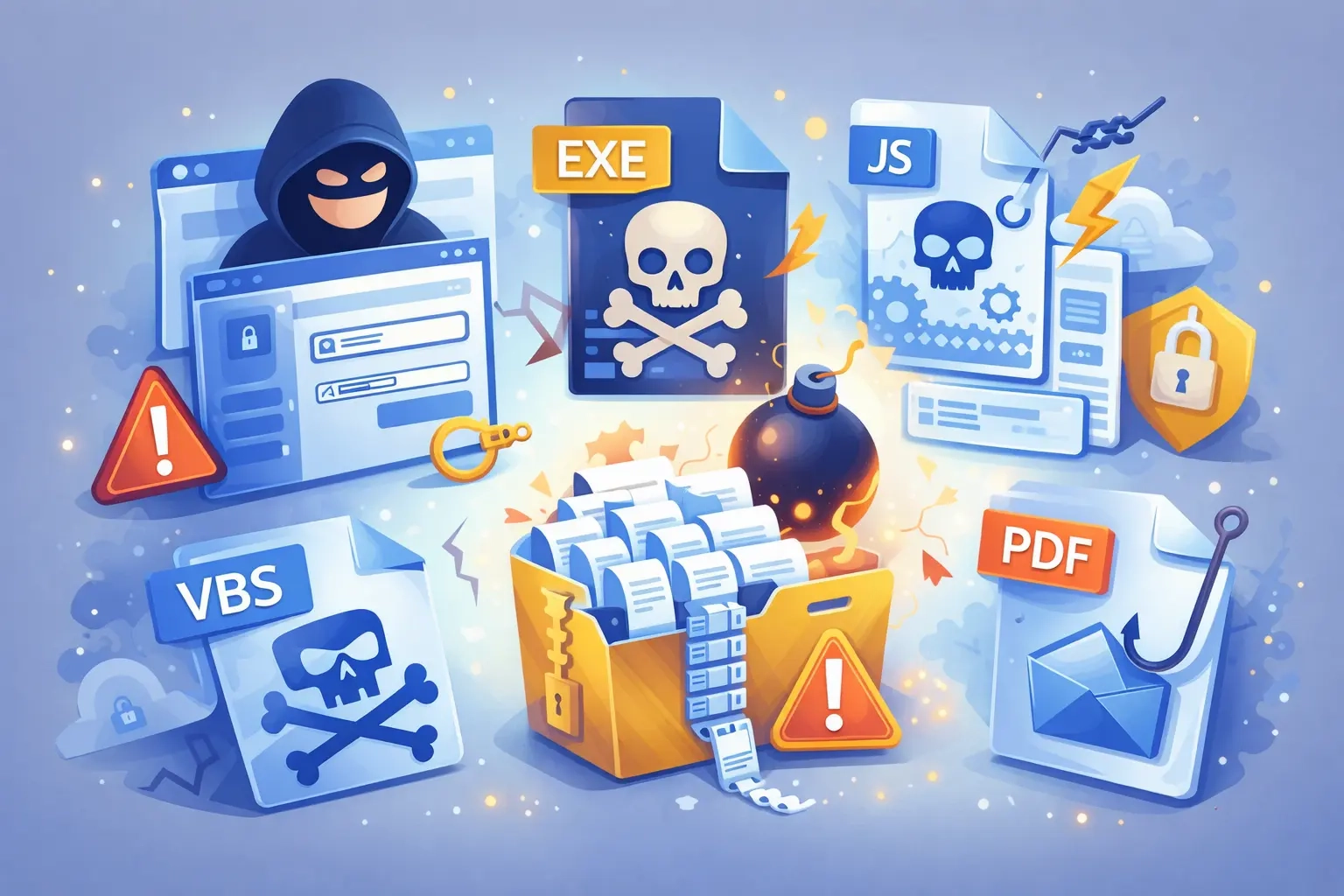
Attackers love attachments because a file can do damage in many ways: execution, exploitation, or social engineering. Here are the most common threats in plain English.
1) Malware in executable files
If a file can run code directly, it’s inherently risky. Avoid:
.exe, .msi, .com, .scr
.bat, .cmd, .ps1 (PowerShell scripts)
.jar (Java archives)
Rule: Never run executable files received via temporary email or temp mail unless you are in a dedicated test environment (sandbox/VM) and you know exactly what you’re doing.
2) Script-based payloads
Some attachments don’t look like apps, but they execute scripts:
.js, .vbs, .hta, .wsf
These can launch downloads, steal browser data, or run hidden commands.
Rule: Treat script attachments as “do not open.”
3) Macro-enabled Office documents
Documents like Word and Excel can contain macros that run code. High-risk formats include:
.docm, .xlsm
Even .docx or .xlsx can be weaponized via exploits or embedded content, but macro-enabled files are especially suspicious.
Rule: If any document prompts “Enable Content” or “Enable Macros,” stop.
4) Malicious PDFs
PDFs can be used for phishing links, embedded files, or exploiting vulnerabilities in outdated readers.
Rule: Use an up-to-date viewer and avoid clicking embedded links unless you verify the destination.
5) Archived files (ZIP/RAR/7z) and disk images
Attackers hide payloads inside archives or disk images:
.zip, .rar, .7z, .iso, .img
Password-protected ZIP files are common because security scanners can’t inspect them easily.
Rule: Avoid password-protected archives from unknown sources. If you must open them, do it in a sandbox environment.
6) HTML attachments and “login pages”
Sometimes the attachment is a .html or .htm file that opens a fake login screen locally.
Rule: Don’t open HTML attachments from unknown sources—especially in temp mail workflows.
A Safer Workflow: How to Receive Attachments Using Temp Mail
Here’s a practical workflow you can follow every time you receive an attachment in a temporary email inbox.
Step 1: Confirm you expected the file
Ask yourself:
- Did I request this file?
- Does the sender context make sense?
- Is the file name consistent with the request?
If anything feels random, don’t proceed.
Step 2: Check the file type and extension (carefully)
Do not rely on icons. Verify the actual extension:
- On Windows, make sure “File name extensions” are visible.
- On macOS, inspect the file info if needed.
If it’s executable/script/macro-enabled: stop.
Step 3: Prefer preview over download
If the temp mail service allows preview, use it—but cautiously:
Previewing a PDF or image in a modern browser is typically safer than downloading and opening with random desktop apps.
Do not interact with embedded elements unnecessarily (links, forms, “download now” buttons inside the content).
Step 4: Scan before opening locally
If you download:
Run your OS scan
Consider multi-engine scanning for non-sensitive files
If it’s business-critical, scan in a dedicated environment
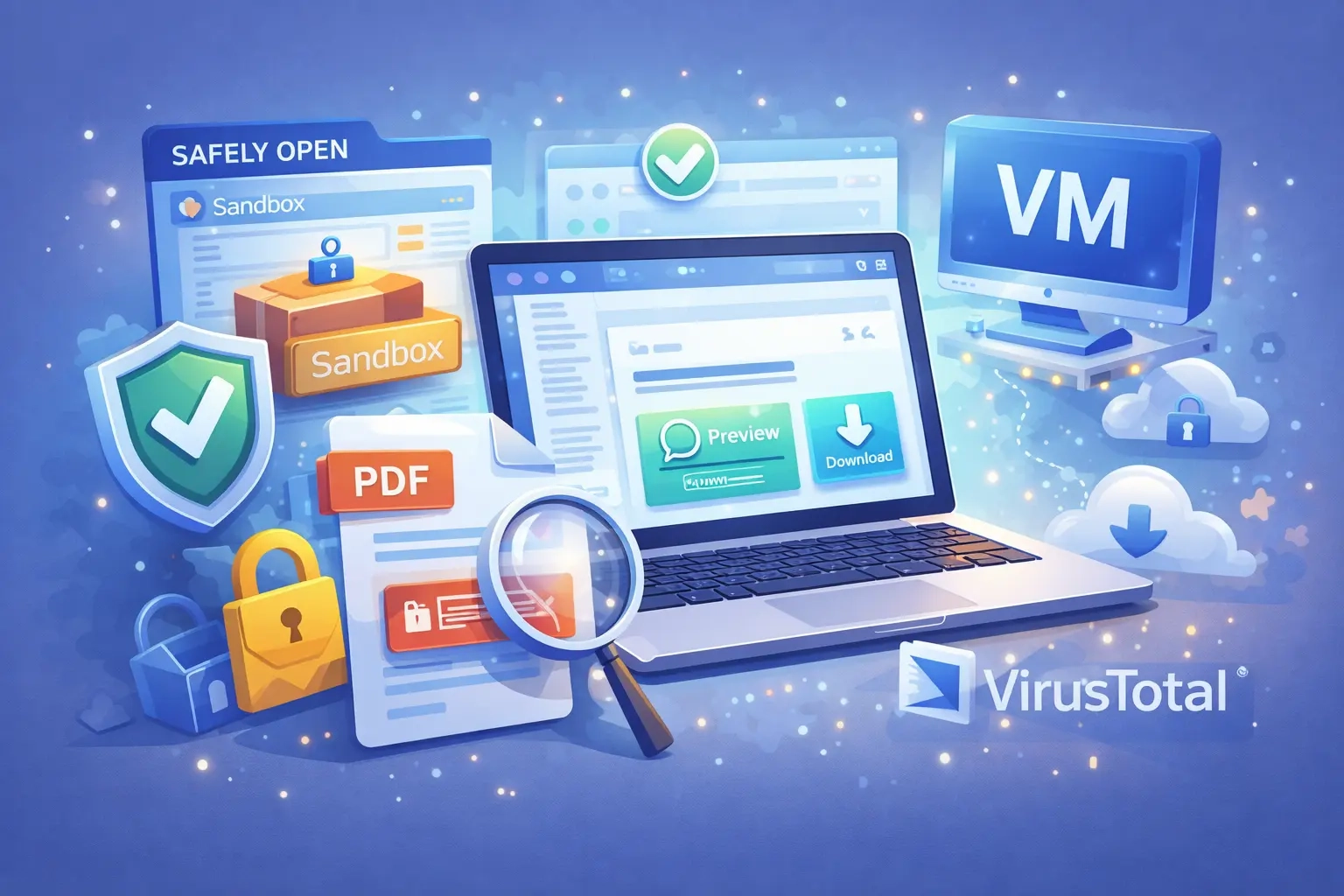
Step 5: Open in an isolated environment when unsure
If you’re not confident:
Use a Virtual Machine (VM)
Use Windows Sandbox (where available)
Use a separate “test” user account with minimal privileges
Avoid opening on the same machine where you keep passwords, crypto wallets, or client data
Step 6: Don’t log into accounts from within suspicious documents
A common trick is to embed a link that looks like Google/Microsoft/Dropbox. Instead:
Open a new tab
Type the official domain manually
Navigate to the file/service from the official site
Safer Ways to Preview and Download Attachments
Now let’s go deeper into the “how.”
Use your browser as a controlled preview tool
For many file types, a modern browser can act as a safer preview environment:
- PDFs: built-in viewers are often safer than outdated desktop readers
- Images: direct preview avoids risky third-party apps
Tip: If you’re using a temp mail website, avoid granting permissions (notifications, clipboard access, etc.) unless absolutely necessary.
Prefer “view-only” modes for documents
If a document can be previewed as read-only (without editing), do that. The fewer features you enable, the less attack surface you expose.
Download only what you truly need
Don’t download attachments “just in case.” Each file is a risk object. Download only if:
You need it
You know what it is
You have a plan to scan and open safely
Convert instead of opening (when possible)
If you only need the content (not the original file):
- Convert Word/Excel to PDF using a safe tool
- Convert SVG to PNG
- Extract text using a safe viewer rather than opening in full editing apps
Avoid “Enable Editing / Enable Content”
This deserves repetition. If you see:
“Enable Content”
“Enable Editing”
“Enable Macros”
Treat it as a stop sign unless the file is from a trusted, verified source and you truly need it.
Best Practices for Handling Documents (PDF, Word, Excel)
Documents are the most common attachment type in both legitimate and malicious emails. Here’s how to handle them safely when using temporary email or temp mail.
PDFs
Safer when:
Opened in a modern browser
You avoid clicking embedded links
Your OS and browser are updated
Risky when:
The PDF requests actions (fill forms, click links, download “viewer updates”)
You use an outdated PDF reader
The PDF appears to be a login page or “account notification”
Best practices:
Keep browser updated
Disable auto-opening downloaded files
If you need to click a link, verify it separately
Word/Excel files
Safer when:
They are plain .docx / .xlsx from trusted sources
You open them in protected/read-only mode
Risky when:
They are .docm / .xlsm
They ask for macros
They contain “Enable Content” prompts
Best practices:
Avoid macro-enabled formats
Convert to PDF if you only need to read
Use a sandbox/VM for unknown documents
Password-protected documents
Password protection can be used for legitimate privacy—but also for bypassing scanners.
Best practices:
Only accept password-protected files from verified senders
Verify the password via a separate channel (not in the same email thread)
Open in isolation when uncertain
Best Practices for Handling Images (JPG, PNG, SVG)
Images are usually safer than documents, but not always.
JPG/PNG
These are generally low-risk, especially if you:
Preview in the browser
Avoid untrusted third-party “image viewer” apps
Keep your OS updated
SVG (special warning)
SVG is an image format, but it can contain complex elements and references. In some contexts, SVG can become risky.
Best practices:
If you only need to view it, convert SVG → PNG in a safe way
Avoid opening unknown SVGs in powerful editors on your main machine
Temporary Email Privacy Tips When Receiving Attachments
Safety is not only about malware—privacy matters too.
Don’t use temp mail for sensitive files
Avoid receiving:
IDs, passports, contracts with personal info
bank statements
medical documents
private photos
Many temporary email services are not designed for high confidentiality.
Assume the inbox could be exposed
Treat a temp mail inbox like a public waiting room:
Don’t forward secrets into it
Don’t store sensitive attachments there
Don’t reuse the address across multiple services if the provider allows random generation
Don’t click tracking-heavy content
Some emails include tracking pixels or redirection links. While this is more a privacy issue than direct malware, it can still be used to build a profile or confirm your activity.
Quick Checklist: Safe Attachment Rules for Temporary Email / Temp Mail
Use this as a final “printable” checklist.
Safe to proceed (green flags)
You expected the email and attachment
File type is low-risk (PDF/JPG/PNG/TXT)
Sender or service is verifiable
You can preview safely first
You scan before opening
Stop immediately (red flags)
Unexpected attachment
Urgency/fear language
Executable or script file
Macro-enabled Office file
Password-protected archive from unknown source
Double extension or suspicious filename
Frequently Asked Questions (FAQ)
Is a temporary email safer than my real email for attachments?
A temporary email (temp mail) is safer for avoiding spam and protecting your main inbox identity. But it doesn’t automatically make attachments safe. The file can still harm your device.
Can I receive attachments on temp mail without downloading them?
Often yes—many services let you preview PDFs or images in-browser. Previewing can reduce risk, but it’s not a guarantee. Still follow safe rules (don’t click embedded links, keep browser updated).
What’s the safest attachment type to receive via temporary email?
Generally:
Plain text (.txt)
Simple images (.jpg, .png)
PDFs (when previewed in modern browser and treated carefully)
Avoid executables, scripts, macro-enabled Office files, and unknown archives.
Should I upload attachments from temp mail to online scanners?
Only for non-sensitive files. Uploading private documents to public scanners can create privacy risk. For sensitive content, scan locally or in your own controlled environment.
Conclusion: Use Temp Mail Smart, Not Fast
A temporary email (or temp mail) is a powerful tool for privacy and convenience—but attachments are where you must slow down. Most real-world incidents happen because people open files quickly without checking the basics: file type, context, sender, and safe preview methods.
If you follow the workflow in this guide—preview first, verify file types, scan, isolate uncertain files—you can safely use temp mail for many everyday tasks without turning your device into the real target.
Sources
1) CISA – Avoiding Social Engineering and Phishing Attacks
2) Microsoft – Protected View for Office files
3) Google – Safe Browsing overview
4) OWASP – Phishing Guidance (general)
5) NIST – Malware / Security guidance (NIST Computer Security Resource Center)
6) VirusTotal – File/URL scanning (use cautiously for sensitive files)